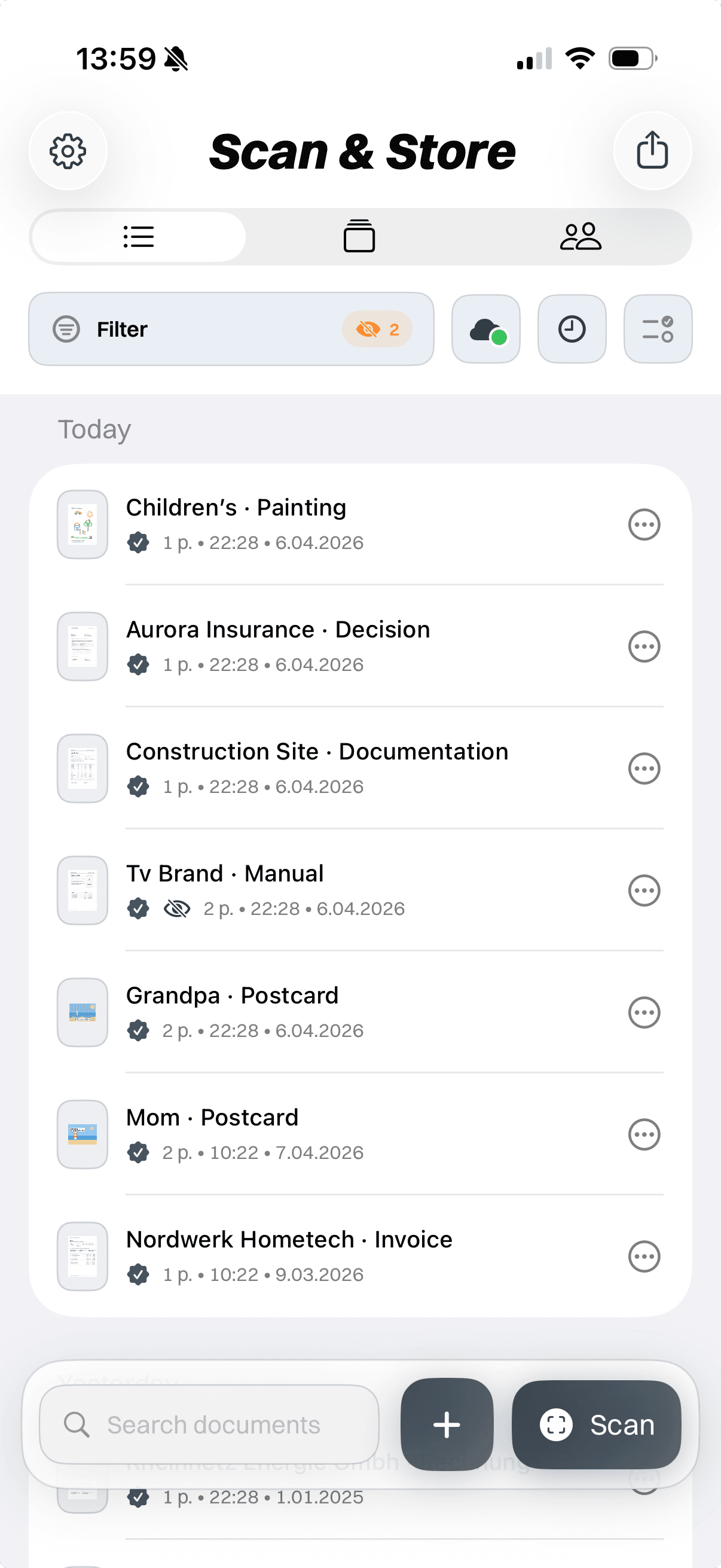
Paper. PDFs. Photos. Mail. Cloud. One clean archive.

The last document routine you’ll ever need.

Scan paper, import PDFs, photos, cloud files and mail documents — then review, name, find, edit and share everything from one clean archive on your iPhone.

  • Local-first
  • Your own cloud optional
  • Export anytime
Coming soon for iPhoneSee how it works
Scan & Store archive overview
iPhone bezel frame

One routine from arrival to sharing.

Every document follows the same clear path: bring it in, clean it up, name it properly, find it later, edit when needed and share the right version.

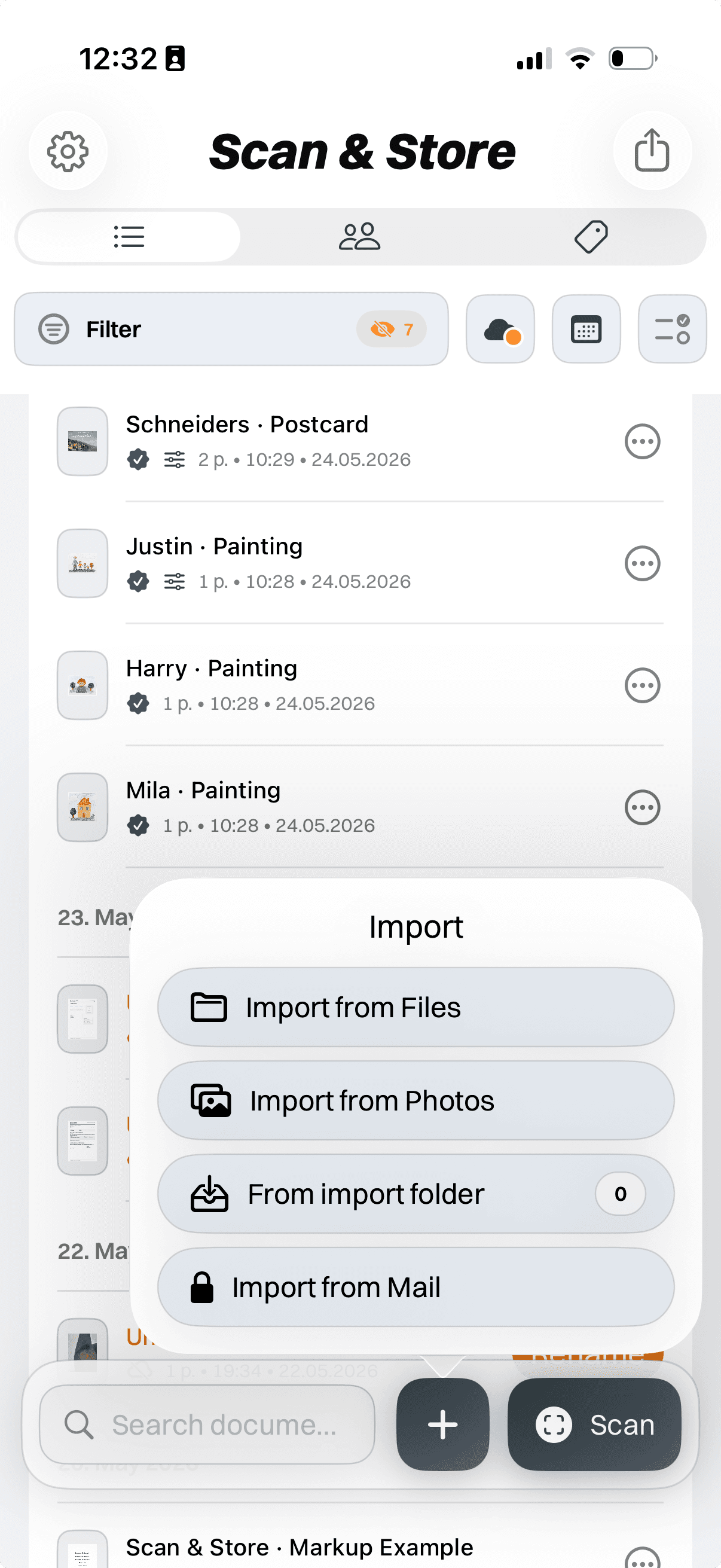
Import

Every document enters the same clean routine.

Scan paper, import PDFs, save photos, collect mail attachments or bring in files from your cloud. No matter where a document starts, it lands in one clean archive routine.

Everything comes in. Everything gets organized. Everything can be found, edited and shared later.

  1. 1Review
  2. 2Name
  3. 3Archive
  4. 4Find
  5. 5Edit
  6. 6Share
Import
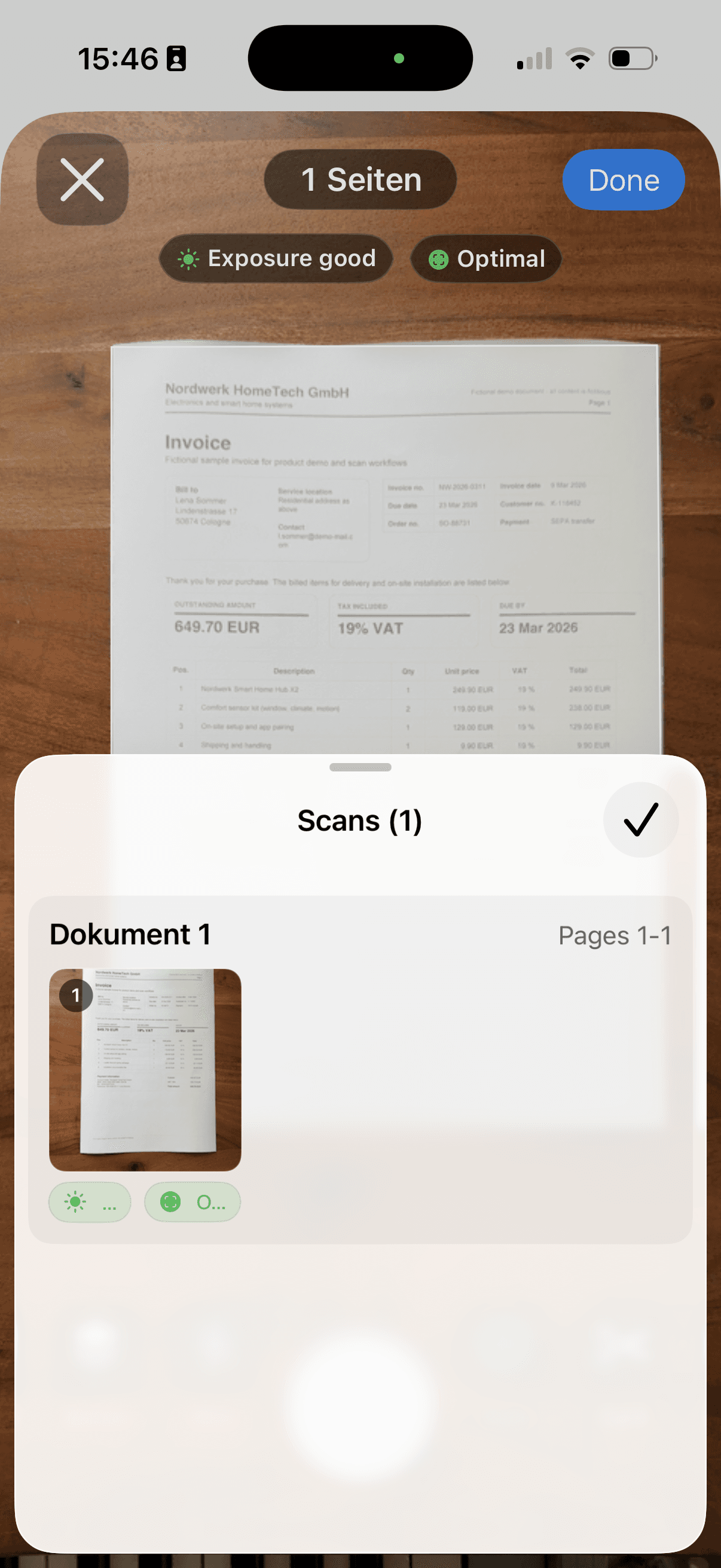
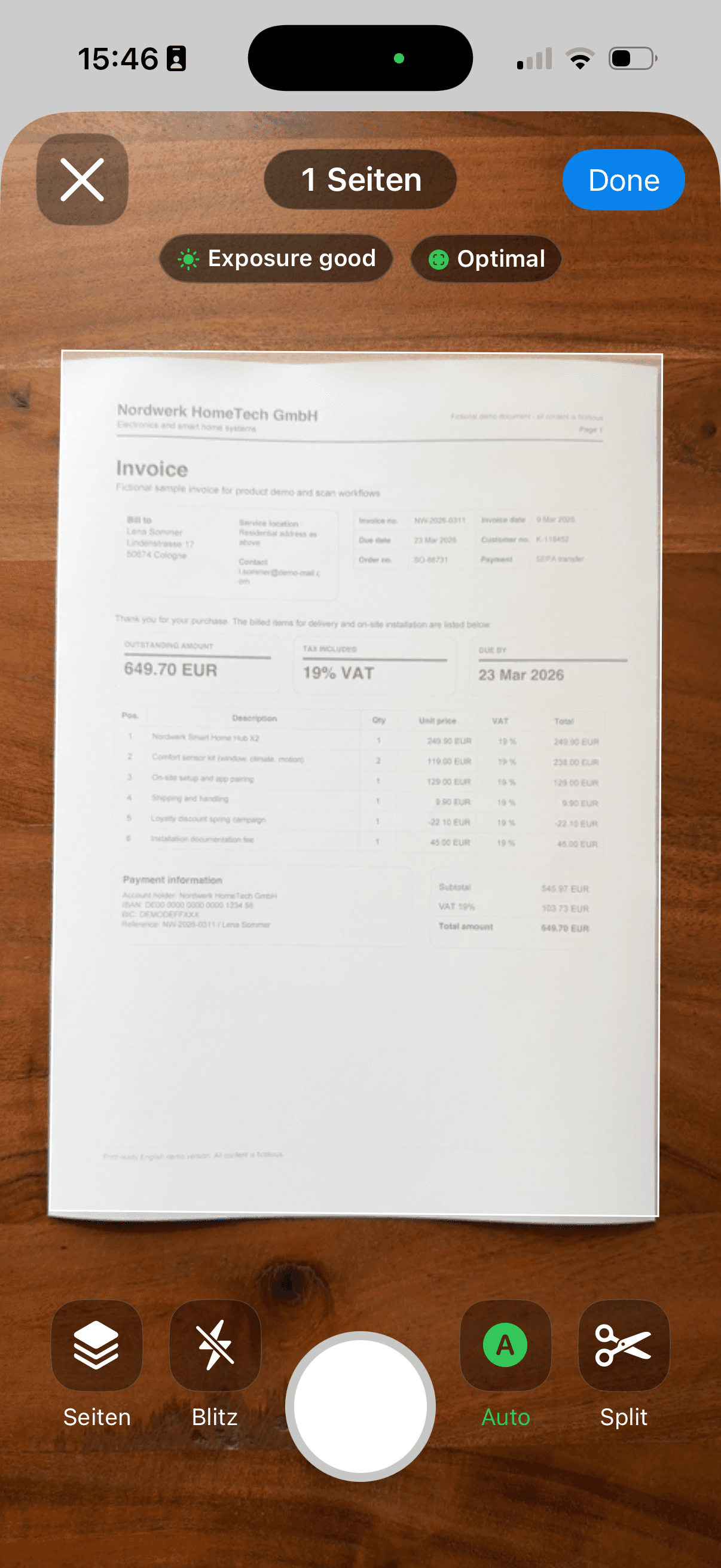
Scan & Store: Scan paper
iPhone bezel frame

Review -> Name -> Archive

  • Scan paper
  • Review
  • Name

01

Scan paper

Letters and receipts go straight into review and naming.

Scan & Store: Import PDFs
iPhone bezel frame

Review -> Name -> Archive

  • Import PDFs
  • Review
  • Name

02

Import PDFs

Existing PDFs follow the same archive path as new scans.

Scan & Store: Photos
iPhone bezel frame

Review -> Name -> Archive

  • Photos
  • Review
  • Name

03

Photos

Document photos can be cleaned up and saved like scans.

Scan & Store: Mail import
iPhone bezel frame

Review -> Name -> Archive

  • Mail import
  • Review
  • Name

04

Mail import

Recurring attachments can arrive ready for review.

Scan & Store: Cloud folder
iPhone bezel frame

Review -> Name -> Archive

  • Cloud folder
  • Review
  • Name

05

Cloud folder

Files from your own cloud still enter the same routine.

Review

Clean it up before it becomes part of your archive.

Check pages, crop scans, choose the right filter, remove duplicates and fix mistakes before saving anything permanently.

Scan / ImportPage ReviewFilter / CropDuplicate CheckContinue to Naming
Review
Scan & Store: Page review
iPhone bezel frame

Page Review

  • Page Review
  • Filter / Crop
  • Duplicate Check

01

Page review

Check the page order before anything is stored.

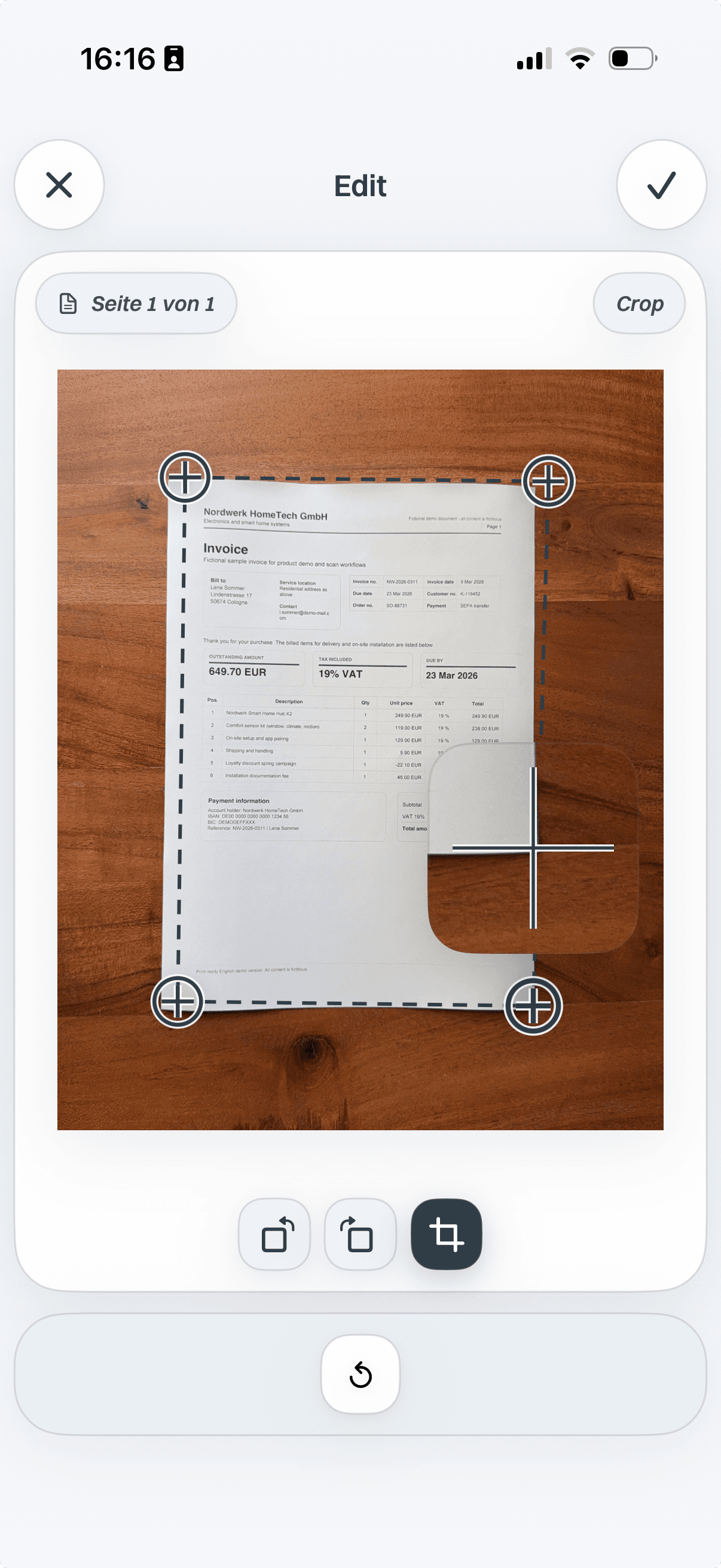
Scan & Store crop editor before page edges are adjusted
Scan & Store crop editor after page edges are adjusted
iPhone bezel frame

Crop page edges before saving.

Before cropCropped

02

Crop

Trim page edges so the saved document is readable.

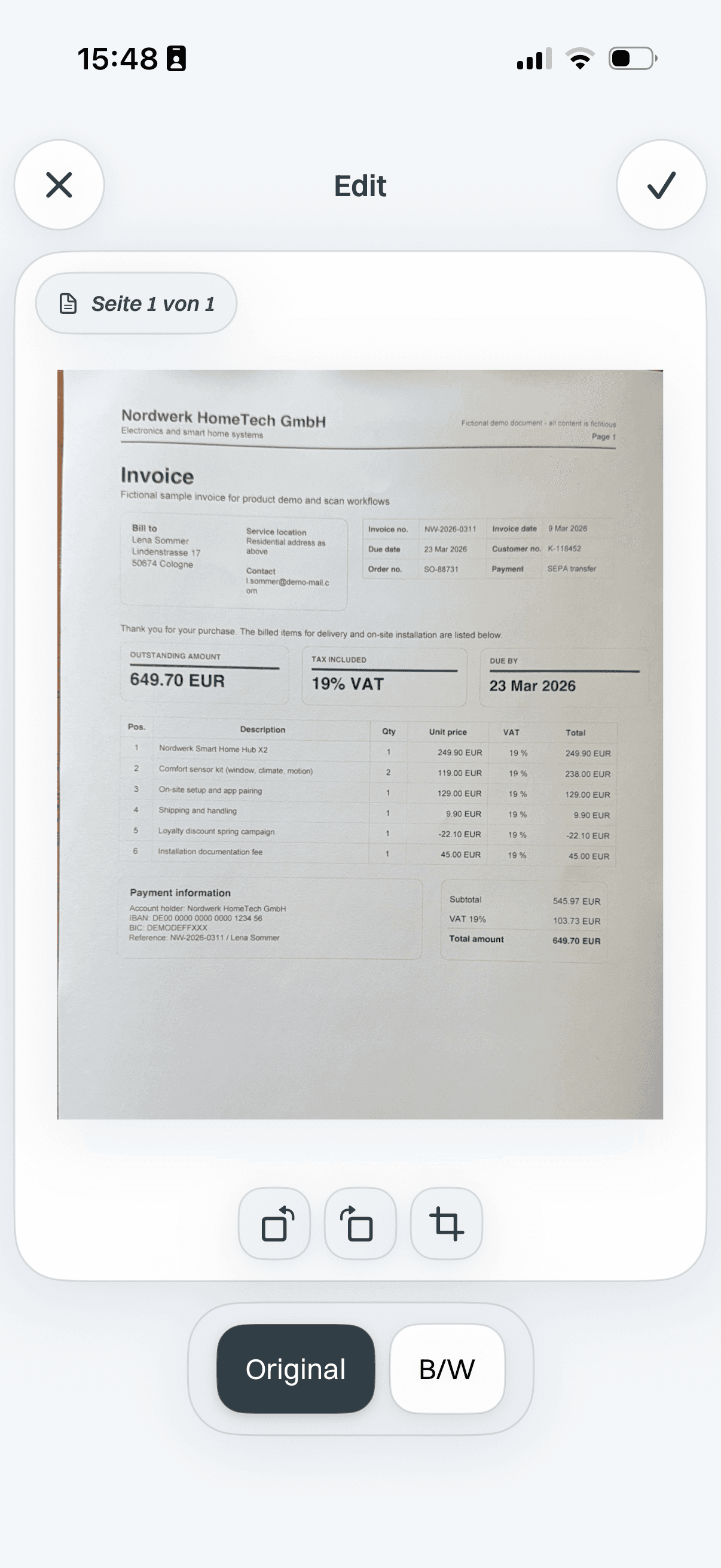
Original scan filter preview
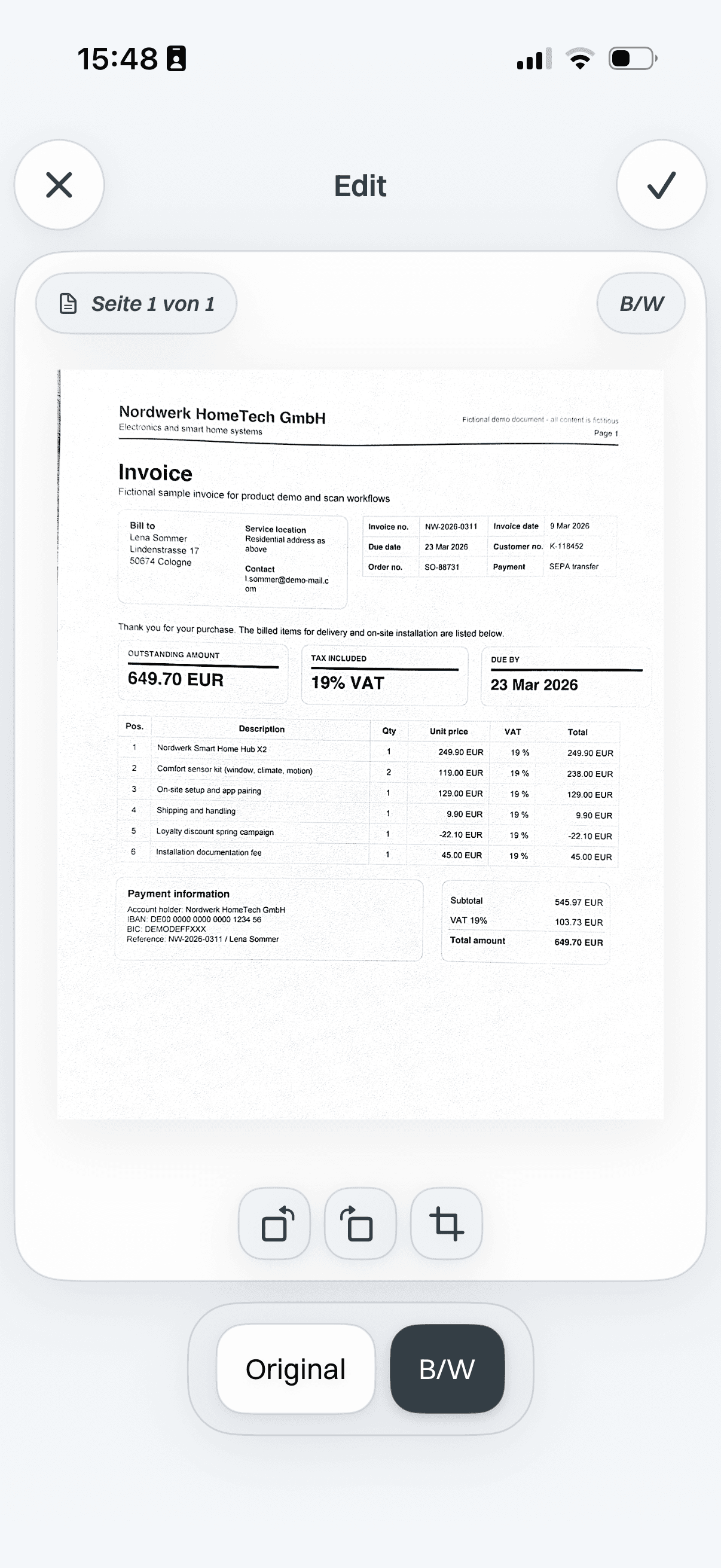
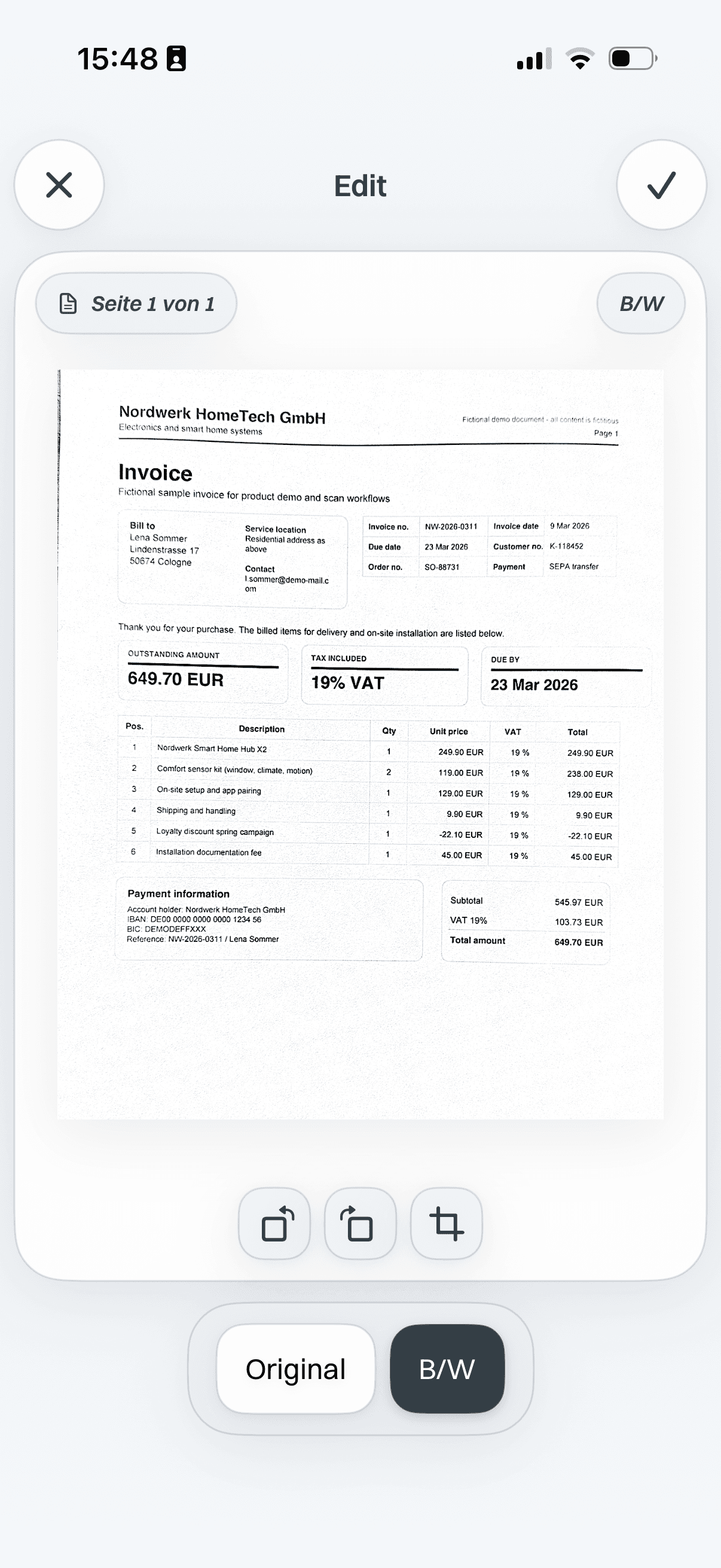
Black-and-white scan filter preview
iPhone bezel frame

Original or black-and-white filter

OriginalBlack-and-white

03

Filter before/after

Compare the original scan with a cleaner black-and-white version.

Scan & Store: Duplicate check
iPhone bezel frame

Duplicate Check

  • Scan / Import
  • Duplicate Check
  • 1PagesOpen the captured pages and check what should continue.
  • 2Auto captureQuality hints help avoid blurry or poorly lit scans.
  • 3SplitSeparate a capture before it becomes part of the review.
  • 4DoneContinue only when the scan looks ready for naming.

04

Duplicate check

Catch repeated pages before they clutter the archive.

Name

Turn random files into real documents.

Confirm sender, date, type and tags before saving — so your archive stays consistent in the app and in your own cloud folders.

A scan is just a file. A named document becomes part of your archive.

Name
Scan & Store: Sender
iPhone bezel frame

Allianz

  • Before
  • Allianz

01

Sender

Confirm who the document came from before saving.

Scan & Store: Date
iPhone bezel frame

2026-05

  • Before
  • 2026-05

02

Date

Give the archive a stable month and year to filter later.

Scan & Store: Type
iPhone bezel frame

Home Insurance

  • Before
  • Home Insurance

03

Type

Separate receipts, contracts, forms and proof documents.

Scan & Store: Tags
iPhone bezel frame

Tag

  • Tag
  • Tags

04

Tags

Add context like insurance, school, warranty or property.

Scan & Store: Clean file name
iPhone bezel frame

2026-05 · Allianz · Home Insurance

  • IMG_3829.jpg
  • 2026-05 · Allianz · Home Insurance

05

Clean file name

Turn messy filenames into readable document names.

Find

The moment you need a document is the worst moment to start searching.

Find documents by text, sender, date, type, month or tags — even if you only remember what it was about.

SenderTagMonthYearTypeEditedShared
Find
Scan & Store: Text search
iPhone bezel frame

Search: warranty

  • Warranty · Washing Machine · 2026
  • Warranty · iPhone · 2025

01

Text search

Search for warranty even when the filename is gone.

Scan & Store: Sender search
iPhone bezel frame

Search: warranty

  • Sender

02

Sender search

Narrow results to the company or person behind the document.

Scan & Store: Month filter
iPhone bezel frame

Search: warranty

  • Month

03

Month filter

Jump to the month when the document likely arrived.

Scan & Store: Tag filter
iPhone bezel frame

Search: warranty

  • Tag

04

Tag filter

Use tags to collect related documents quickly.

Scan & Store: Type filter
iPhone bezel frame

Search: warranty

  • Type

05

Type filter

Limit the result to receipts, contracts, forms or proof.

Scan & Store: Edited/shared filter
iPhone bezel frame

Search: warranty

  • Edited
  • Shared

06

Edited/shared filter

See what has already been prepared or sent.

Edit

Fix, sign and prepare documents before you send them.

Crop, filter, sign, redact, mark up or add notes — without moving the document to another app first.

FilterCropSignatureRedactNotesHighlightForms
Edit
Scan & Store: Sign
iPhone bezel frame

Sign

  • Signature

01

Sign

Add a signature without leaving the document routine.

Scan & Store redaction editor with selected sensitive areas
Scan & Store document preview with sensitive areas redacted
iPhone bezel frame

Hide sensitive fields before sharing.

Selected fieldsRedacted copy

02

Redact

Hide sensitive fields before you share a copy.

Scan & Store: Highlight
iPhone bezel frame

Highlight

  • Notes
  • Highlight

03

Highlight

Mark the relevant line before sending the document.

Scan & Store document editor before notes and markups are added
Scan & Store document editor after notes and markups are added
iPhone bezel frame

Add context before you share.

Before notesWith notes

04

Notes

Add reusable context for the next share or email.

Scan & Store original scan before filter adjustment
Scan & Store filtered black-and-white scan preview
iPhone bezel frame

Clean up the scan before saving.

OriginalFiltered

05

Crop/filter

Fix page edges and readability before export.

Scan & Store: Original vs edited
iPhone bezel frame

Original / Edited

  • Original
  • Edited

06

Original vs edited

Choose whether the original or edited copy should leave the archive.

Share

Share exactly what the situation needs.

Send one PDF, a ZIP bundle, a sender folder, a tag collection or a filtered month — with the original or edited version, password protection or a cloud link.

No desktop needed.

Choose the format and version.

Send one PDFBundle as ZIPCreate a cloud linkPrint directlyProtect with passwordChoose original or edited version
Share
Scan & Store: Single PDF
iPhone bezel frame

Single PDF

  • PDF
  • ZIP
  • Print Sheet
  • Cloud Link

01

Single PDF

Send one document when the request is simple.

Scan & Store: ZIP bundle
iPhone bezel frame

ZIP bundle

  • PDF
  • ZIP
  • Print Sheet
  • Cloud Link

02

ZIP bundle

Package selected files for a larger case.

Scan & Store: Cloud link
iPhone bezel frame

Cloud link

  • PDF
  • ZIP
  • Print Sheet
  • Cloud Link

03

Cloud link

Share a readable export through your own cloud.

Scan & Store: Print sheet
iPhone bezel frame

Print sheet

  • Move
  • Resize
  • Center

04

Print sheet

Place multiple scans on one printable page.

Scan & Store: Password-protected PDF
iPhone bezel frame

Password-protected PDF

  • Password protect

05

Password-protected PDF

Add protection when the document contains sensitive details.

Scan & Store: Original or edited version
iPhone bezel frame

Original or edited version

  • Original
  • Edited

06

Original or edited version

Decide which version should be exported or sent.

Control

Your archive stays under your control.

Documents stay local by default. Use your own cloud when you want sync or restore, keep readable folders and export your archive anytime.

Control
  • Local-first
  • Your own cloud optional
  • Readable cloud folders
  • Password-protected PDFs
  • Original or edited exports
  • Export anytime

Moments when your archive pays off.

Use Scan & Store before paperwork becomes urgent — when support asks for a receipt, tax season starts, a damage case happens or a contract suddenly matters.

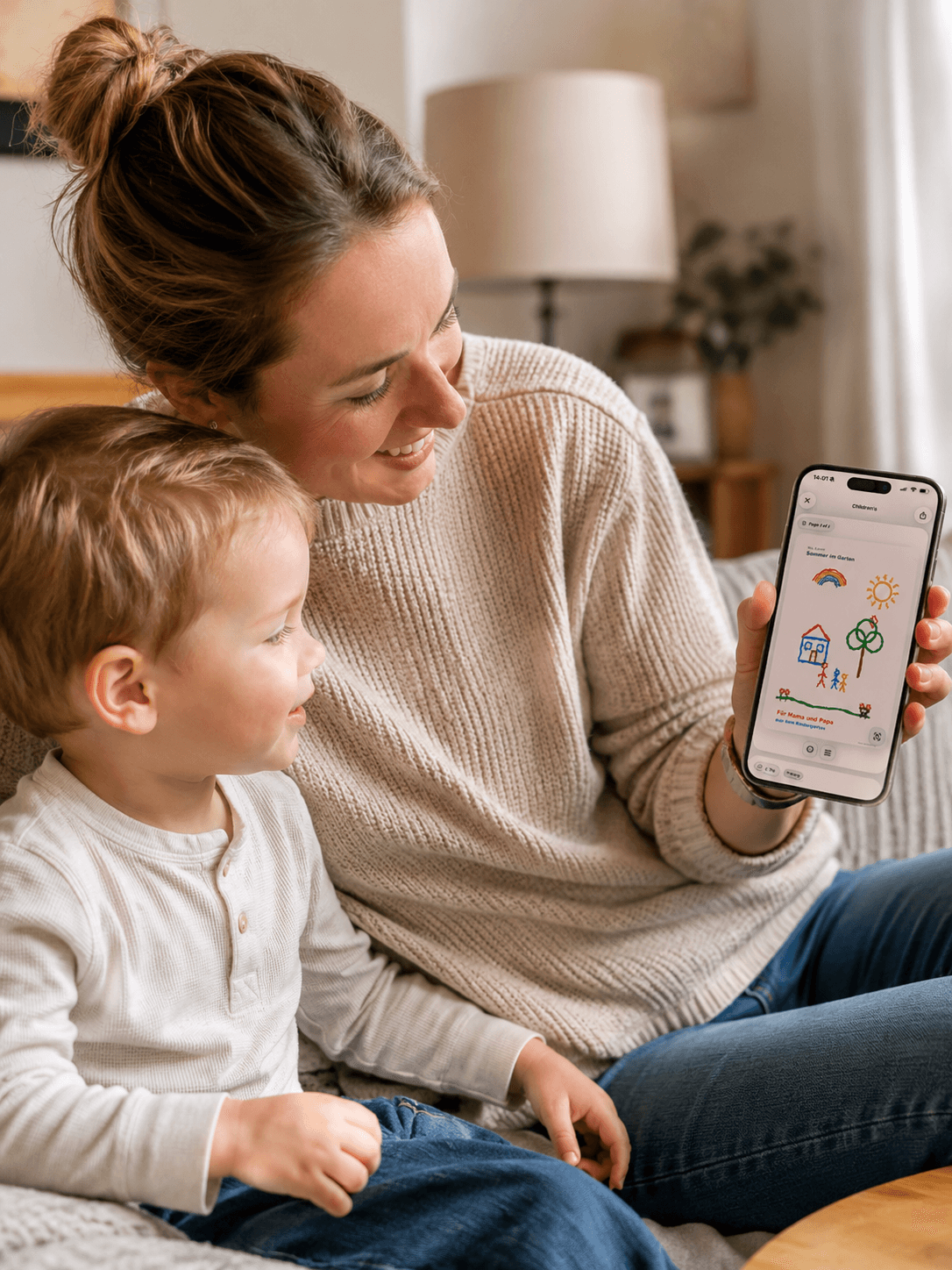
Parent and child looking at a scanned children’s drawing in Scan & Store on iPhone

Family and household

Keep family paper from becoming household clutter.

Children’s drawings, school notes, receipts and family paperwork can move into the same clean archive routine, so the kitchen counter does not become the archive.

  • Children’s drawings
  • School notes
  • Receipts
  • Family paperwork
Construction site scene showing property paperwork and documentation for Scan & Store

Apartment and property

Keep renovation and damage records ready.

Contracts, handover notes, repair invoices and site photos can stay together, so property issues are easier to document later.

  • Handover records
  • Damage photos
  • Repair invoices
  • Contracts

Warranty or return

Find the receipt before support asks twice.

Tax deadline

Collect receipts and invoices without folder digging.

Insurance case

Share proof, invoices and policies in one package.

Apartment or property issue

Keep contracts, handover records and damage photos ready.

Family paperwork

Save school notes, medical papers and children’s drawings before they disappear.

Keep your archive

Build the archive you’ll be glad to have later.

Start with a 7-day free trial. Monthly or yearly plans unlock the full scan, import, naming, search, editing, sharing and sync routine.

Yearly

Best value for a stable archive routine.

Save 30%

$24.99 / year

$2.08 per month

Coming soon for iPhone

Monthly

Short-term flexibility without a long commitment.

$2.99 / month

Flexible monthly access

Coming soon for iPhone

Basic Access

After cancellation

Existing local documents stay viewable and exportable even without an active subscription.

  • View existing local documents at any time
  • Export existing local documents whenever needed
  • No subscription required for Basic Access

FAQ

Is Scan & Store only a scanner app?

No. Scanning is the entry point. The core value is turning documents into a structured archive you can find, edit, export, and optionally sync later.

Can I use it without cloud sync?

Yes. Scan & Store is local-first. Cloud sync is optional if you want backup, restore or access through your own cloud provider.

Which cloud providers are supported?

Google Drive, Dropbox, and pCloud are supported for optional sync and restore. iCloud Drive is not offered as a production cloud provider in V1.

What happens if I cancel?

In the installed version, Basic Access keeps viewing and exporting existing local documents. Premium unlocks scanning, import, naming, search, editing, sharing, and sync.

Can I share documents without changing my archive?

Yes. Cloud shares are separate export copies, so shared collections do not mutate the original archive.

Can I export edited or redacted documents?

Yes. For redactions, use the edited export. Original exports keep the original document, so always check which output you share.

Support Search

Start building the archive you’ll be glad to have later

Scan, import, name, find, edit and share documents in one local-first routine.

Coming soon for iPhone